You can give your Codename One web app the same desktop theme family as your users’ operating system: Aqua on macOS, Fluent on Windows, or Adwaita on Linux. Menus can sit above the app in HTML, with commands such as File and View visible instead of tucked into a mobile overflow menu.
That gives you a browser version of your app that fits more comfortably on a desktop. The JavaScript port now supports both choices, and the same theme work reaches the Certificate Wizard you use to sign your apps.
Follow the operating system, or choose a theme
Set these in the Settings app’s Build Hints:
nativeTheme=native
javascript.titleBar=html
In codenameone_settings.properties, use codename1.arg.nativeTheme and codename1.arg.javascript.titleBar instead. Desktop browsers select Fluent for Windows, Aqua for macOS, and Adwaita for Linux and the remaining desktop systems. Phones and tablets keep the mobile theme selection. The browser detection treats an iPad as a tablet even when it reports a Mac browser.
These are Codename One themes drawing the controls. They are not the operating system’s native widget toolkit embedded in the page.
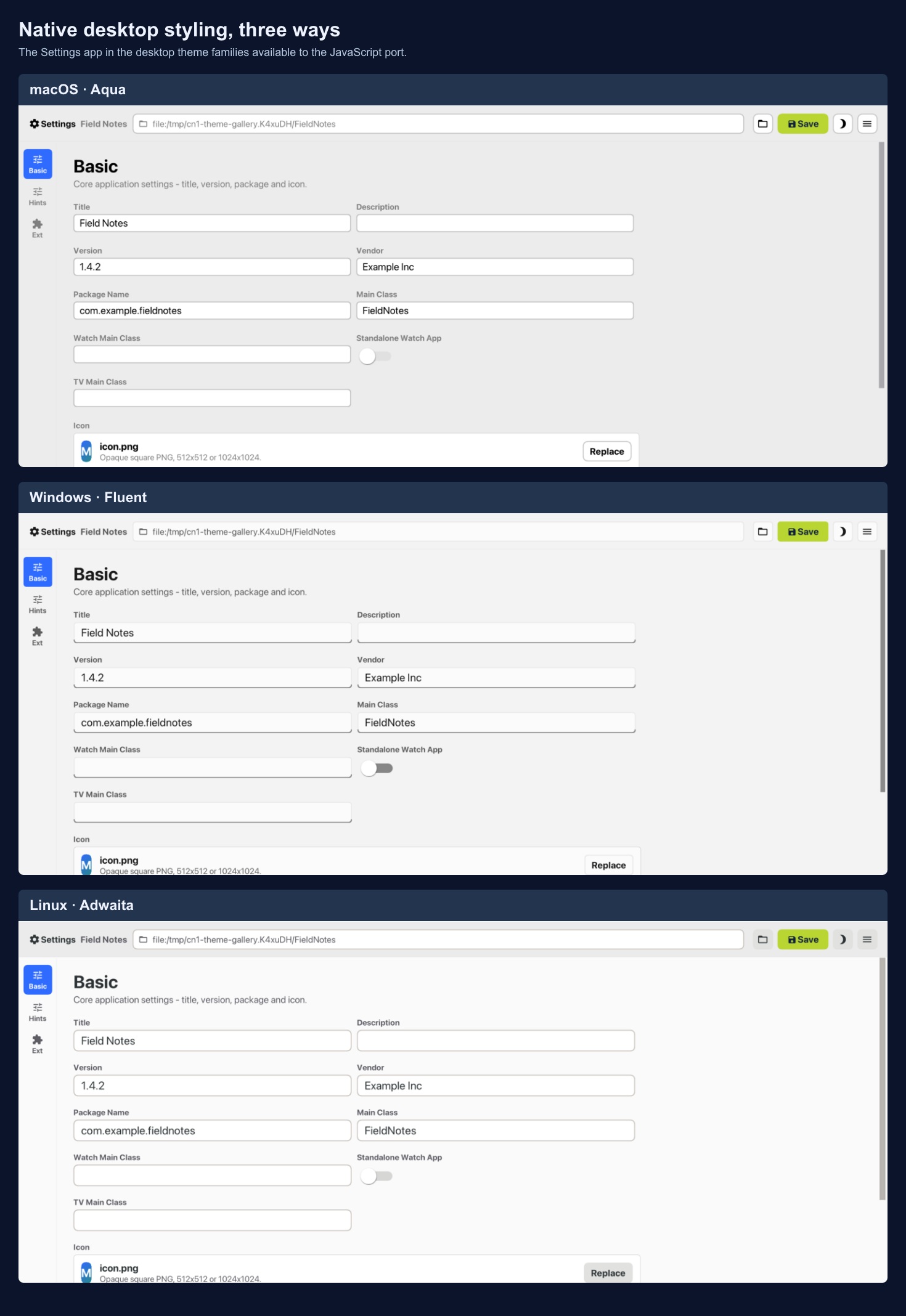
The Settings app demonstrates the three desktop theme families now available to browser apps. Click to compare the controls at full size.
You can pin a desktop theme when the application’s design calls for it:
javascript.desktopTheme=fluent
The other explicit choices are aqua, adwaita and none. none keeps mobile themes on desktop browsers. Leave the value at auto to follow the operating system. The broader nativeTheme=modern setting has different behavior: it selects the modern mobile families, including on desktop browsers. Use native when desktop family selection is what you want.
Put commands above the app
The default javascript.titleBar=toolbar keeps the themed Toolbar inside the app. With html, the page supplies title and menu bars instead. The title follows the current form; commands group into menus using the same Command.setDesktopMenu() hint used on the desktop ports.
For example, inside an initialized app:
com.codename1.ui.Form form = new com.codename1.ui.Form("Notes");
com.codename1.ui.Command refresh = new com.codename1.ui.Command("Refresh") {
    public void actionPerformed(com.codename1.ui.events.ActionEvent event) {
        form.setTitle("Notes refreshed");
    }
};
refresh.setDesktopMenu("View");
form.getToolbar().addCommandToOverflowMenu(refresh);
form.show();
Commands without a menu hint go into a Commands menu. The HTML bars follow the selected appearance and the browser’s light or dark preference. They do not have fake minimize, maximize or close buttons: the page does not own the browser window. The browser tab title remains the application’s display name.
The source is in JavaScriptDesktopChrome, with build-hint and page behavior documented in the JavaScript guide.
Keep navigation inside your browser app
We do not support additional native Window surfaces in the JavaScript port. Popup blockers and the browser’s window ownership make that a different promise from drawing a menu inside the current page. Windows browsers are supported; extra OS windows are the unsupported feature. Dialogs and navigation within the app remain the appropriate model.
There are renderer limits too. For example, the full lifted-lens optics from Sunday’s iOS article are not implemented in the browser. Try the actual controls and effects your app uses rather than assuming a theme name proves complete renderer parity.
The build prunes theme resources it can prove the app will not reach. If your code constructs resource names dynamically, set javascript.pruneThemes=false; otherwise a theme loaded only through that constructed name may be missing.
Use the same desktop styling when you sign your app
A gallery of buttons cannot tell us whether an application works comfortably with a desktop theme. The Certificate Wizard has longer forms, tables, dialogs and instructions that people must actually read to finish a task.
PR #5916 adopts the native desktop themes there, continuing the work we did in Settings. Its current source uses @DesktopBuild(themeMode = "native", titleBar = DesktopTitleBar.NATIVE, ...), with interactive scrollbars. Fluent, Aqua and Adwaita now provide the surrounding control styles instead of a separate wizard-specific desktop imitation.
The same change fixes handling of an App ID’s team prefix. That is a separate functional repair, not a consequence of adopting a theme. The wizard’s current source keeps both changes visible.
Try the browser theme with a form that has real commands and enough content to scroll. Switch appearances, open its menus and check keyboard navigation. That will teach you more than another screenshot of an isolated button.
The weekly overview links the rest of the release. It also includes this week’s smaller map-label improvement.
Discussion
For a browser version of a desktop app, which commands deserve a visible menu?